
Manage your accounts and subscription
Add an account
The page Account management is the main place to get started. This is where you add your MetaTrader account and then copy the private key used by the robot and some alerts.
- Open Account management
- Fill in the Account number
- Add a simple Label, for example MT5 Demo
- Click Add


What the private key is used for
The private key identifies your account on the TIXIAN side. It is used to authenticate the robot, connect some alerts to your account, and secure the exchanges.
Never share this key publicly.
If you click Regenerate, remember to update the new private key everywhere:
- in the robot
- in your TradingView alerts
- in any other tool linked to this account
Check whether the account is ready
In Account management, first look at the status dot on the left side of the account number.
- If it is green (online), the account is connected
- If it is red (offline), the account is not connected
Also check that the account is enabled, not archived, and that the private key column is filled in.
When to use symbol mapping
Symbol mapping is useful when the symbol used in TradingView is not exactly the same as the symbol used by your broker.
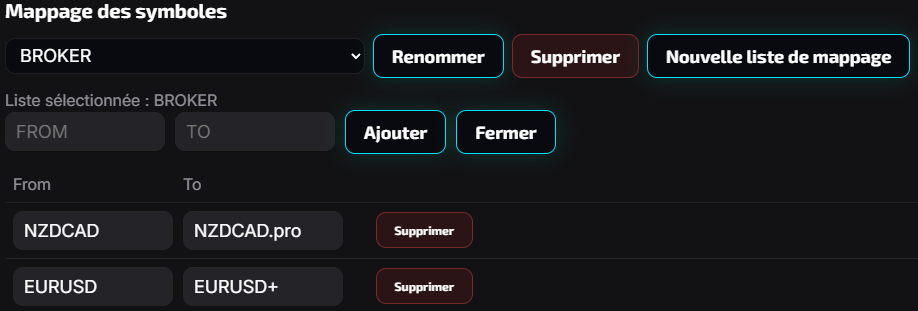
EURUSDon TradingView becomesEURUSD.aon your brokerXAUUSDon TradingView becomesXAUUSDmon your brokerBTCUSDon TradingView becomesBTCUSD.proon your broker
Create a mapping list
- Click New mapping list
- Give your list a name, then confirm
- Select the list in the Symbol mapping area
- Fill in FROM with the symbol coming from TradingView
- Fill in TO with your broker symbol
- Click Add
Assign the list to the correct account
- Go back to the desired account row
- In the mapping dropdown, choose your list
- Check that the selected list remains visible on the account row

Check your subscription

From Account management, you can check:
- subscription status
- subscription end date
- time remaining
- used / allowed accounts
- whether auto-renew is enabled
View your invoices
The page My invoices lets you view your invoices and, depending on the case, download them.
- open My invoices
- find the invoice you need
- open it or download it if the action is available
